Moodle users can now quickly and easily add a new meeting link into ANY Moodle activity that uses the text editor. Simply click on the Microsoft Teams icon on the text editor to begin scheduling course meetings.

Integration Details
Moodle users with Microsoft accounts can create audio and video conference calls (meetings) using the Atto Teams Meetings plugin for Moodle, for free (Microsoft Teams is included in Office 365 A1, which is free for educational institutions). The plugin provides an easy way to create a Microsoft Teams Meeting from within the Atto Editor wherever it’s available, for example: calendar events, forum posts, pages, or assignments.
It’s important to note that it will not display the events in Microsoft Teams Calendar, but you can add the link to Moodle calendar events.
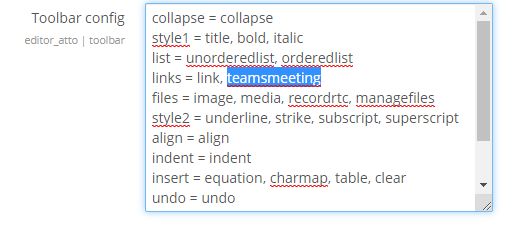
Visual Guide* to Moodle + Teams Meetings
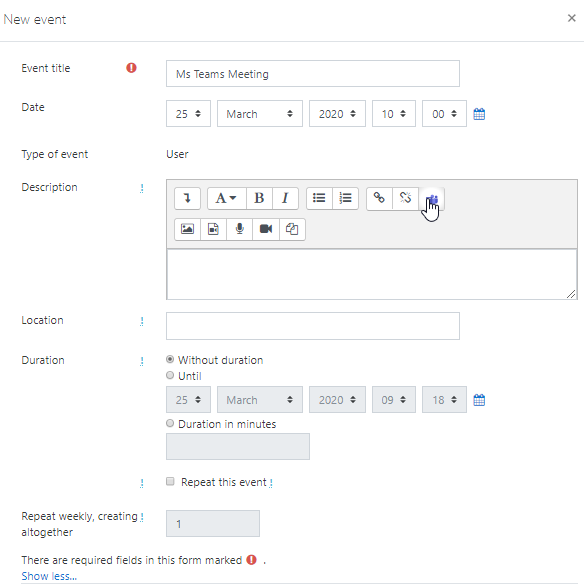
1. When editing description using the Atto Editor, click on the Microsoft Teams icon
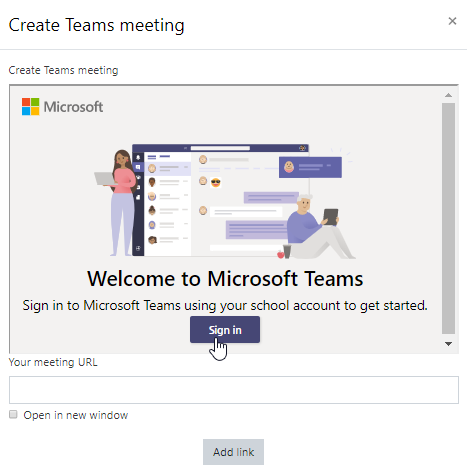
2. Then select Create meeting link (you will need to sign into your Microsoft Teams account the first time you use it).
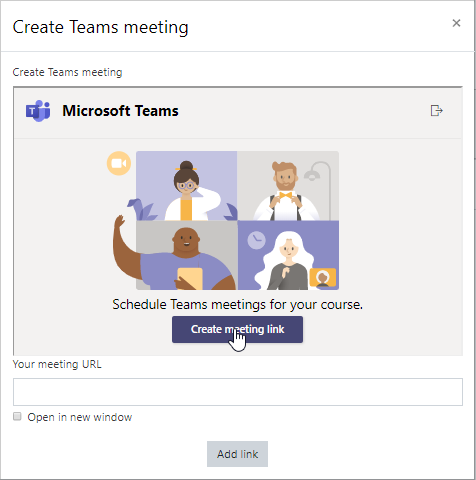
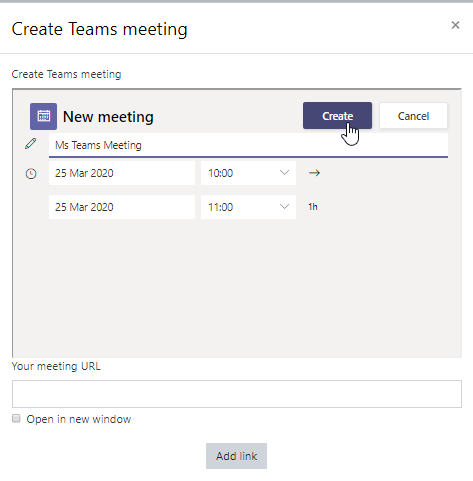
3. Enter a meeting title, date, and time, then click Create. The link will show in the field “Your meeting URL”.
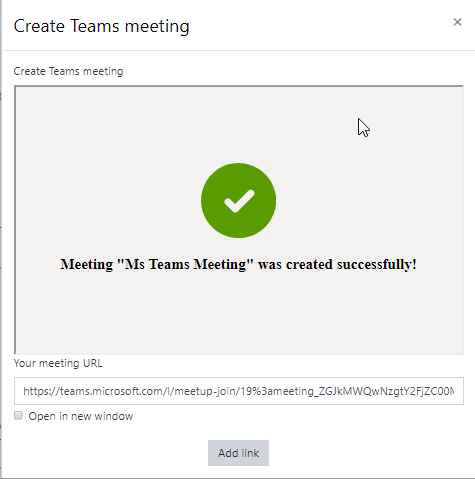
4. Mark “Open in a new window” if you want the meeting to open in a new tab and click “Add link”.
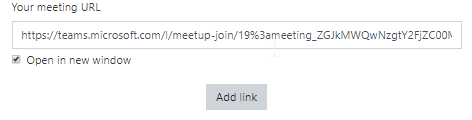
Now the meeting link will appear for students in the description of Calendar events, Assignments, Forums posts, or wherever else in Moodle that uses Atto Editor.
For questions about accessing Microsoft Teams and creating events from Moodle, please contact Sergio Aclo (saclo@immaculata.edu).