Using Javascript & Apps Script to Retrieve Table Data
Completion requirements
Step 1: Create/Open a Google Sheets Spreadsheet
- Create a spreadsheet and populate it with data, or simply open an existing spreadsheet.
Step 2: Open Apps Script
- On the top menu of Sheets, click "Extensions"
- On the Extensions Menu, click "Apps Script"
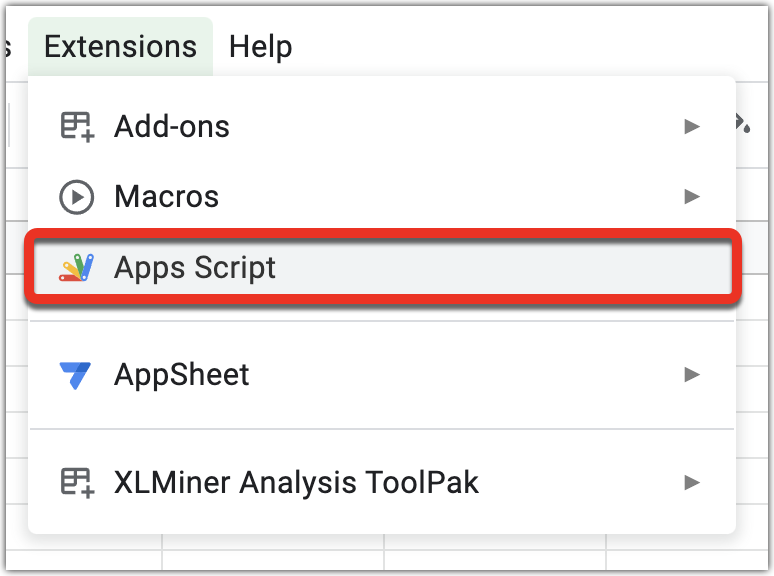
Replace the "myFunction" placeholder with the following code:
 function doGet(e) {
var ss = SpreadsheetApp.getActiveSheet();
var locSheet = SpreadsheetApp.getActiveSpreadsheet();
var dataObject = locSheet.getDataRange().getValues();
var dataString = JSON.stringify(dataObject);
return ContentService.createTextOutput(dataString);}
Step 4: Publish the script.
- Click Deploy >> New deployment
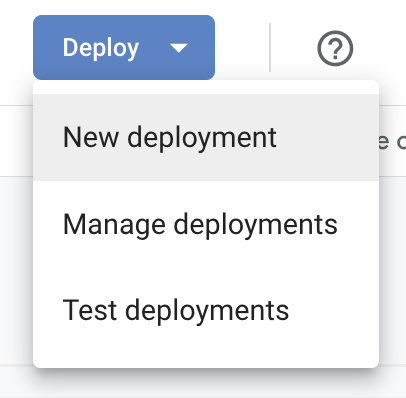
- Click the Gear Icon to select the type of app you'll be deploying, then select "Web App". Click the blue Deploy button when complete.

- Complete the App creation fields
- Provide a Name
- Select "Me" in "execute as..."
- Select "anyone" in "who has access"
- Authorize the app (if this does not appear, it is because you did not save the apps script function)
- Obtain the web app URL
Step 6: Write the Javascript Function to call the web app
On your webpage's javascript section, paste the following code:
 function loadDoc() {
  var url = 'YOUR_WEB_APP_URL';
  var xhttp = new XMLHttpRequest();
  xhttp.onreadystatechange = function() {
    if (this.readyState == 4 && this.status == 200) {

      var googleSheetsData = JSON.parse(this.responseText);
      console.log('THIS IS YOUR GOOGLE SHEETS DATA: ',googleSheetsData);

      //Do something with googleSheetsData
    }
  };
  xhttp.open("GET", url, true);
  xhttp.send();
}
In the above example, replace "YOUR_WEB_APP_URL" with the web app url you copied earlier.
Last modified: Tuesday, 15 March 2022, 9:29 AM